


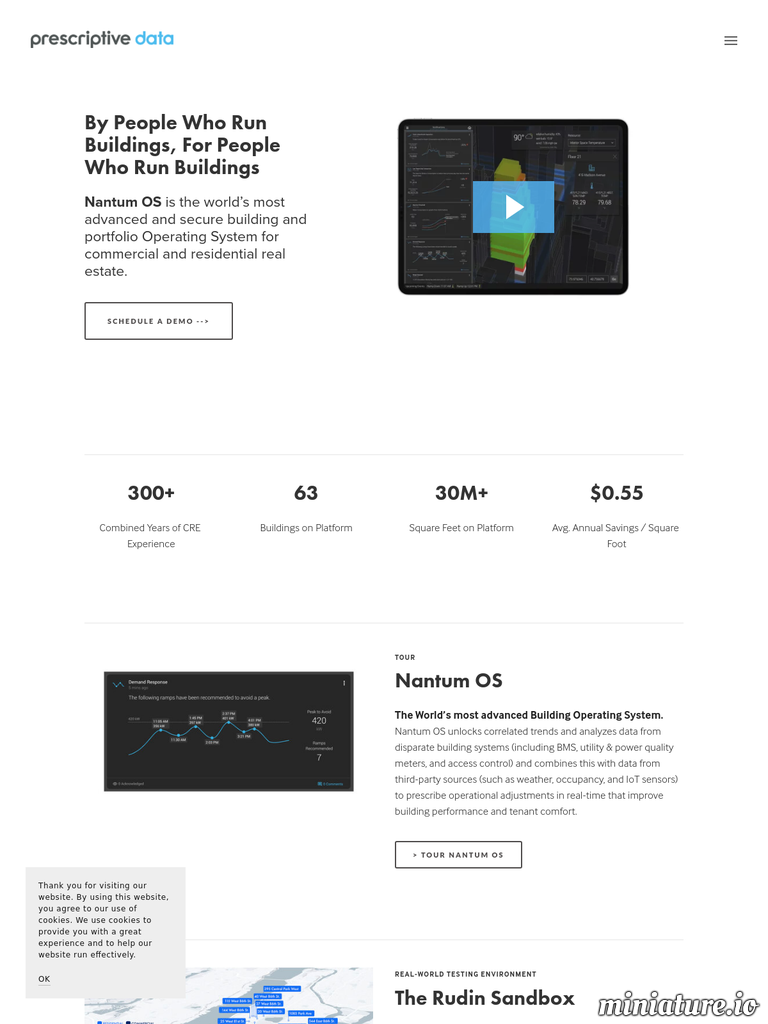
Our flagship product, Nantum OS, is a portfolio Operating System for commercial and residential real estate.
Nantum OS connects to your existing building technologies (BMS, HVAC, utility meters, fire alarm, elevator, access control) and all of your future building technologies (occupancy sensors, thermostats, air quality monitors, IoT sensors), bring all your building data into a single dashboard.
Nantum OS unlocks correlated trends and analyzes data from disparate building systems (including BMS, utility & power quality meters, and access control) and combines this with data from third-party sources (such as weather, occupancy, and IoT sensors) to prescribe operational adjustments in real-time that improve building performance and tenant comfort.
Prescriptive Data designs its solutions by collaborating with building operators and engineers, and maintains a living lab of over 15 million square feet of New York real estate in which it vets new concepts, technologies, sensors and applications.
Our parent company, Rudin Management, one of the largest privately owned real estate companies in New York City, allows Prescriptive Data to test new energy optimization, utilities management, and tenant comfort machine learning algorithms, along with 3rd party IoT devices and software applications.
There are no reviews to display.